
Thrust Into Marketing Without a Design Degree? Create Studio Product Shots & Social Posts Like a Pro.
You don't need Photoshop skills or a $5,000 photo shoot budget to make your business look like a category leader. Brainiest's 15-applet Imaging Suite coaches you through every prompt, automatically injects your saved brand colors and logo for 8 social networks, edits product photos in plain English, and outputs agency-grade visuals in minutes.
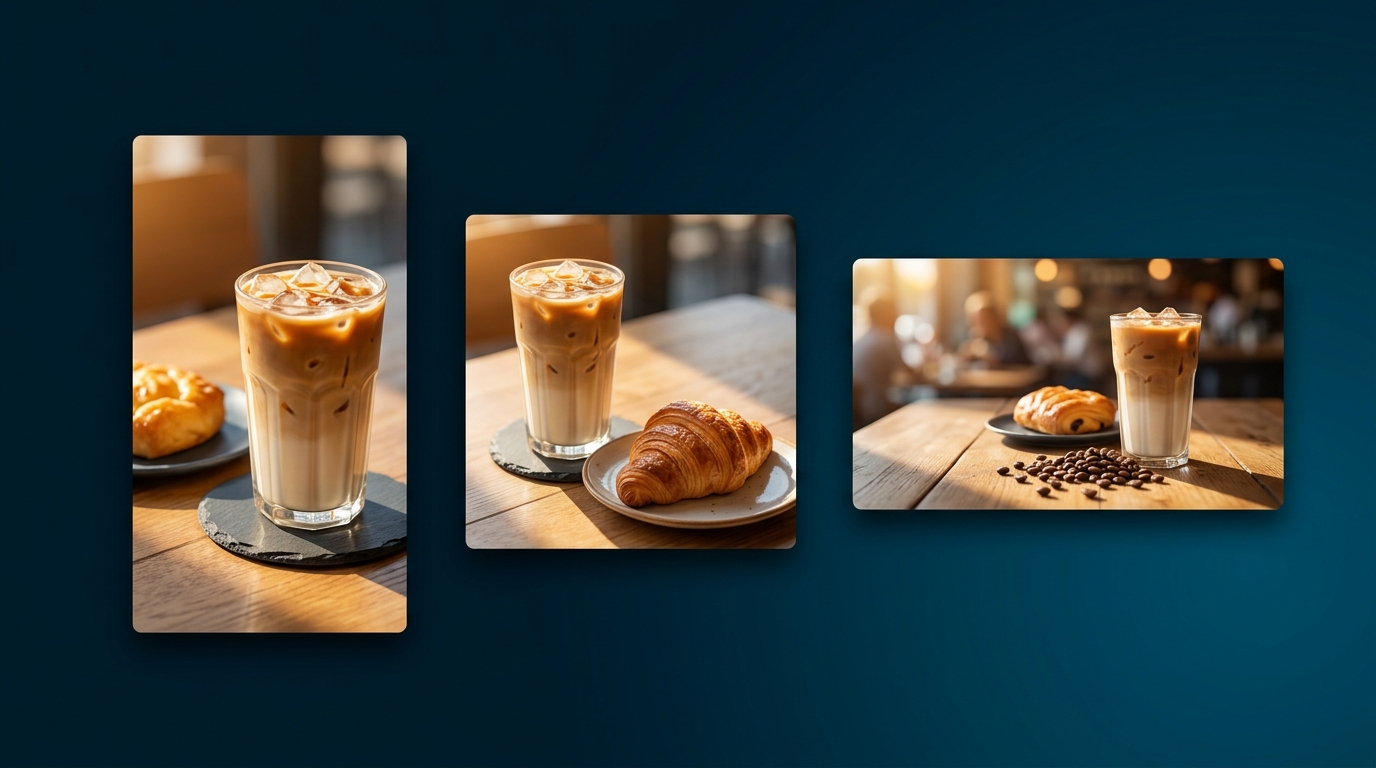
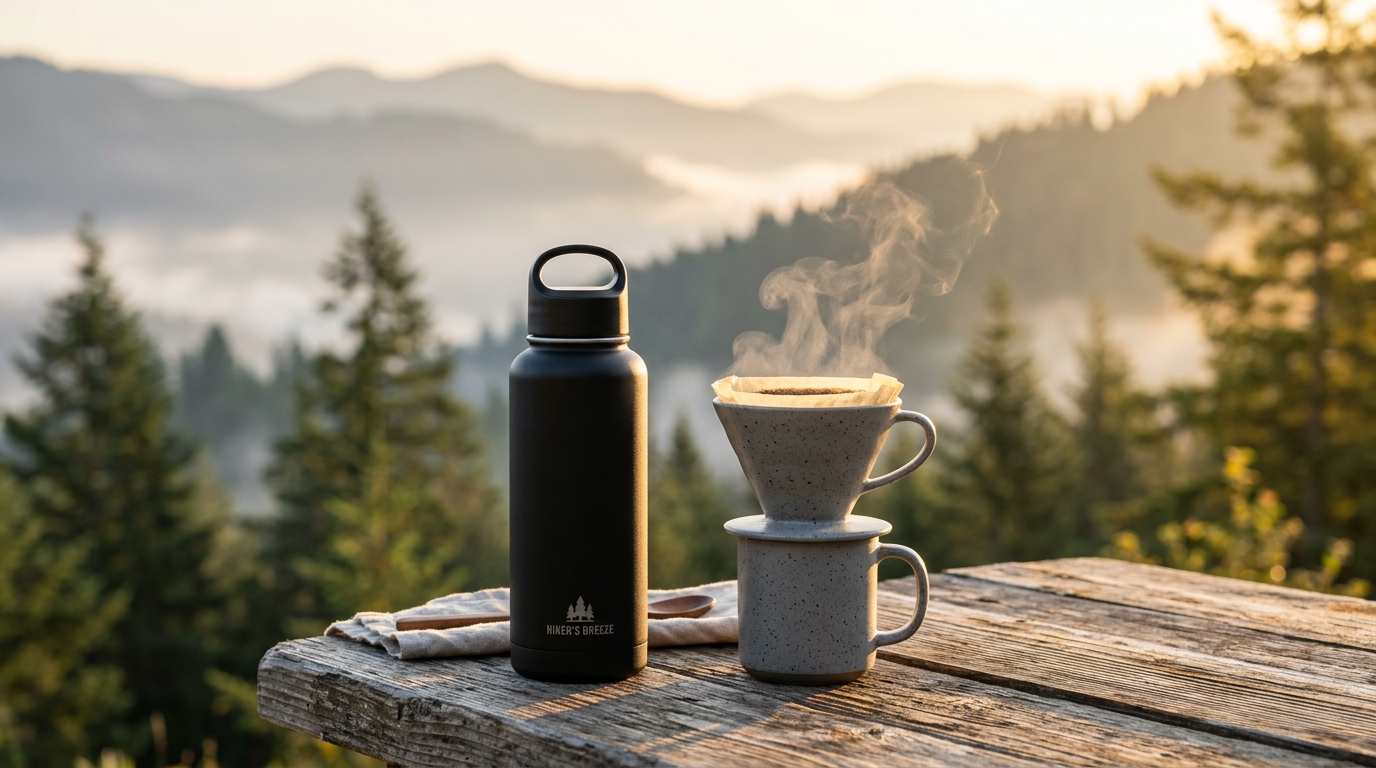
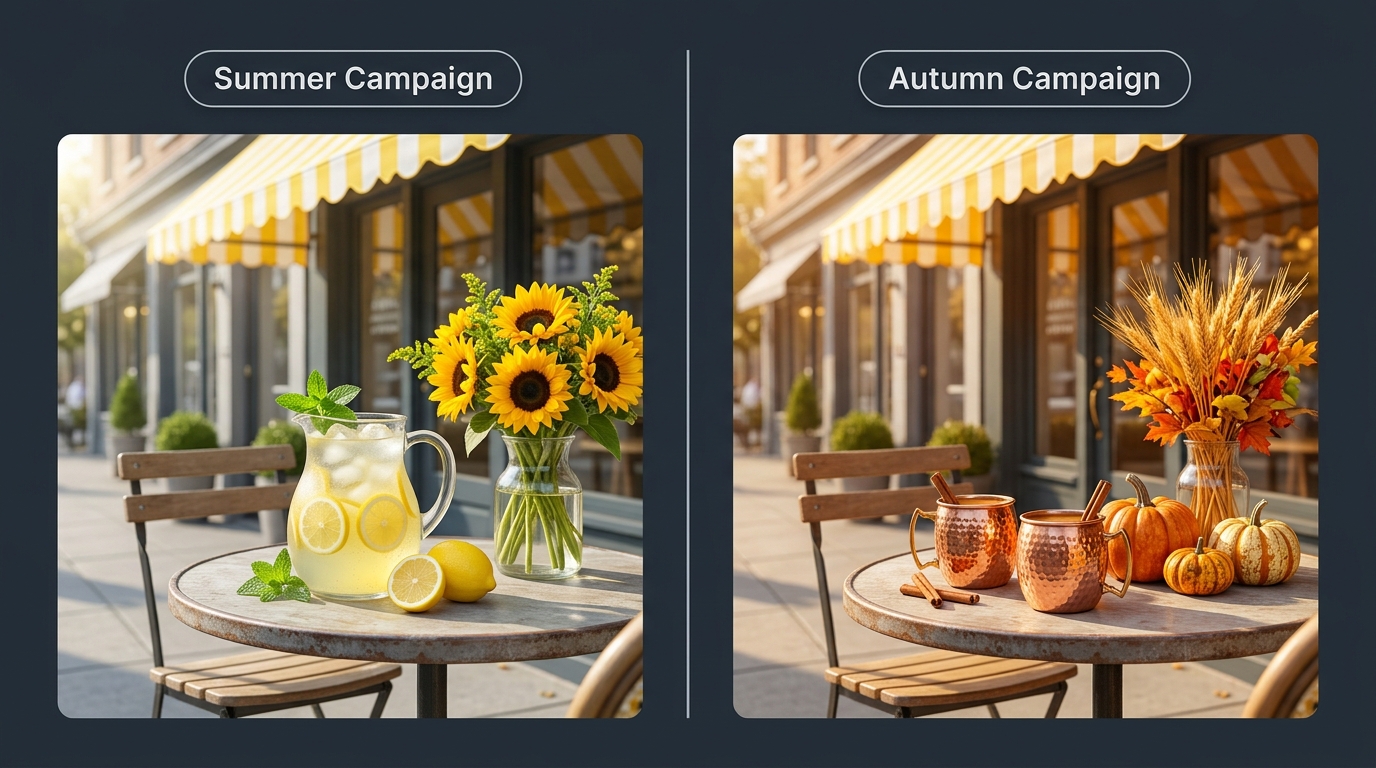

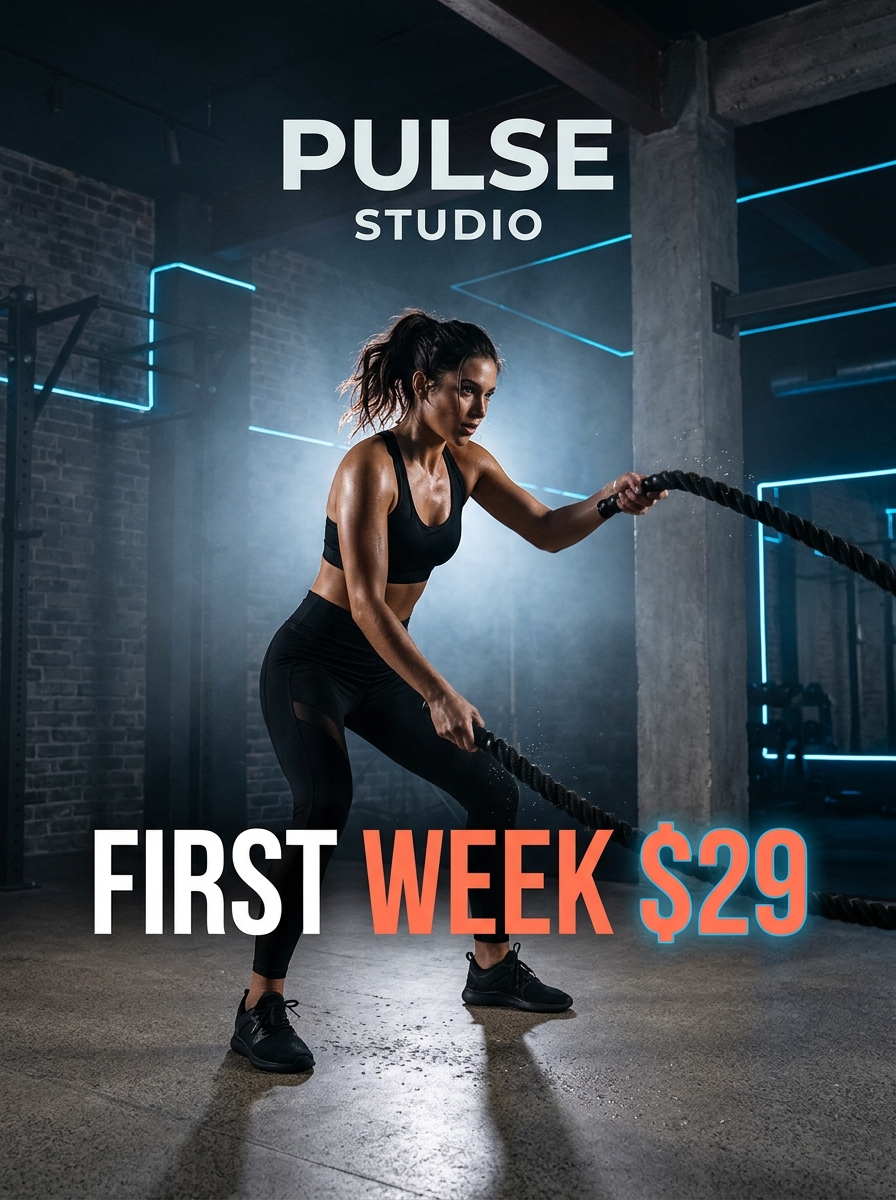
See What You Can Publish Across Every Social Channel
Whether you market a local fitness studio, B2B consultancy, restaurant, retail shop, or home service business—selecting a Target Social Platform automatically formats the canvas, optimizes headline placement, and injects your saved Brand Colors & Logo. Click any industry example below:
One Creative Suite. Fifteen Purpose-Built Visual Tools.
Switch between the three studio pillars below to see the visual outputs side-by-side—or click any of the 15 Applet Pills at the bottom of the lookbook for an instant one-line summary:
Flagship Photorealism & Commercial Lifestyle Scenes
9 aspect ratios, 17 style presets, and (word:weight) control for lifelike textures, lighting, and blog/social headers.
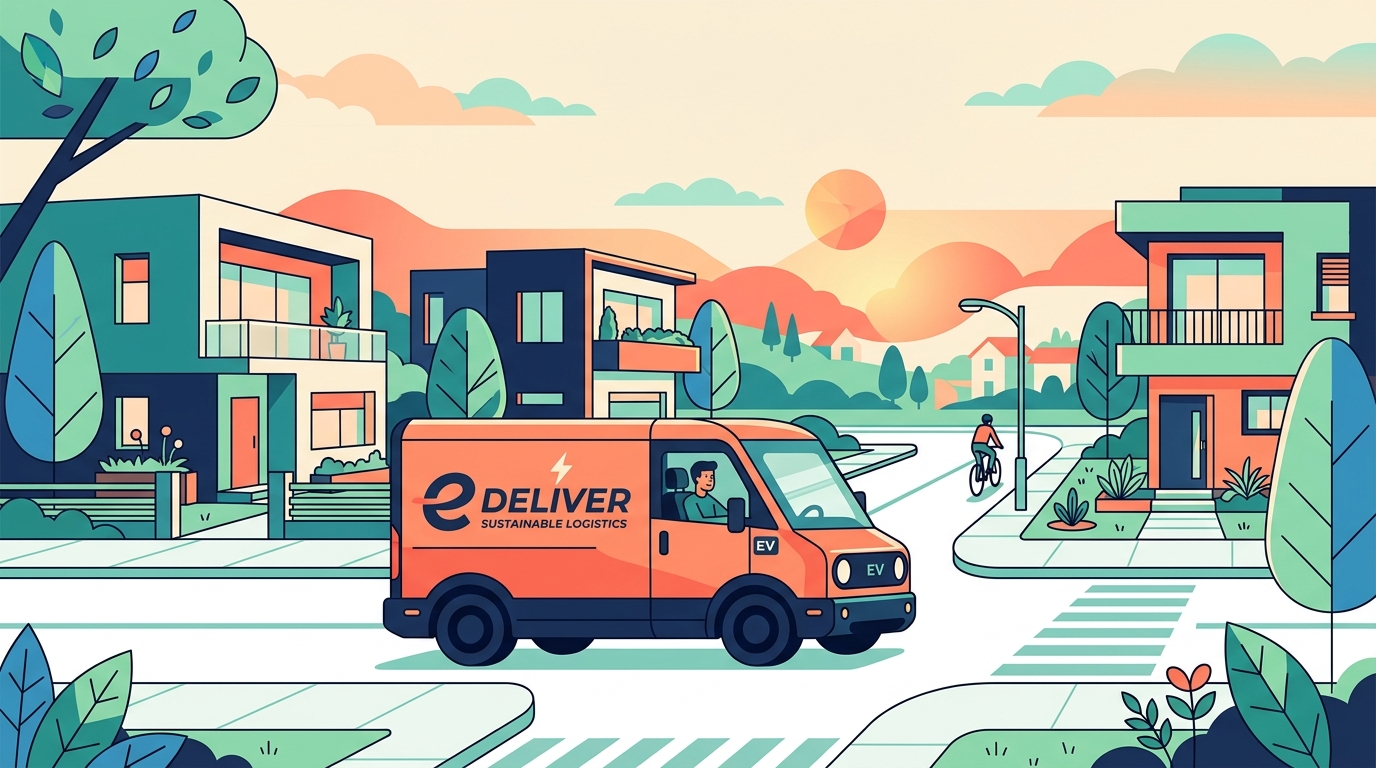
True Editable .SVG Vectors & Accurate Signage Typography
Download scalable .SVG illustrations across 10 vector modes, or generate scenes with crisp storefront and label text.
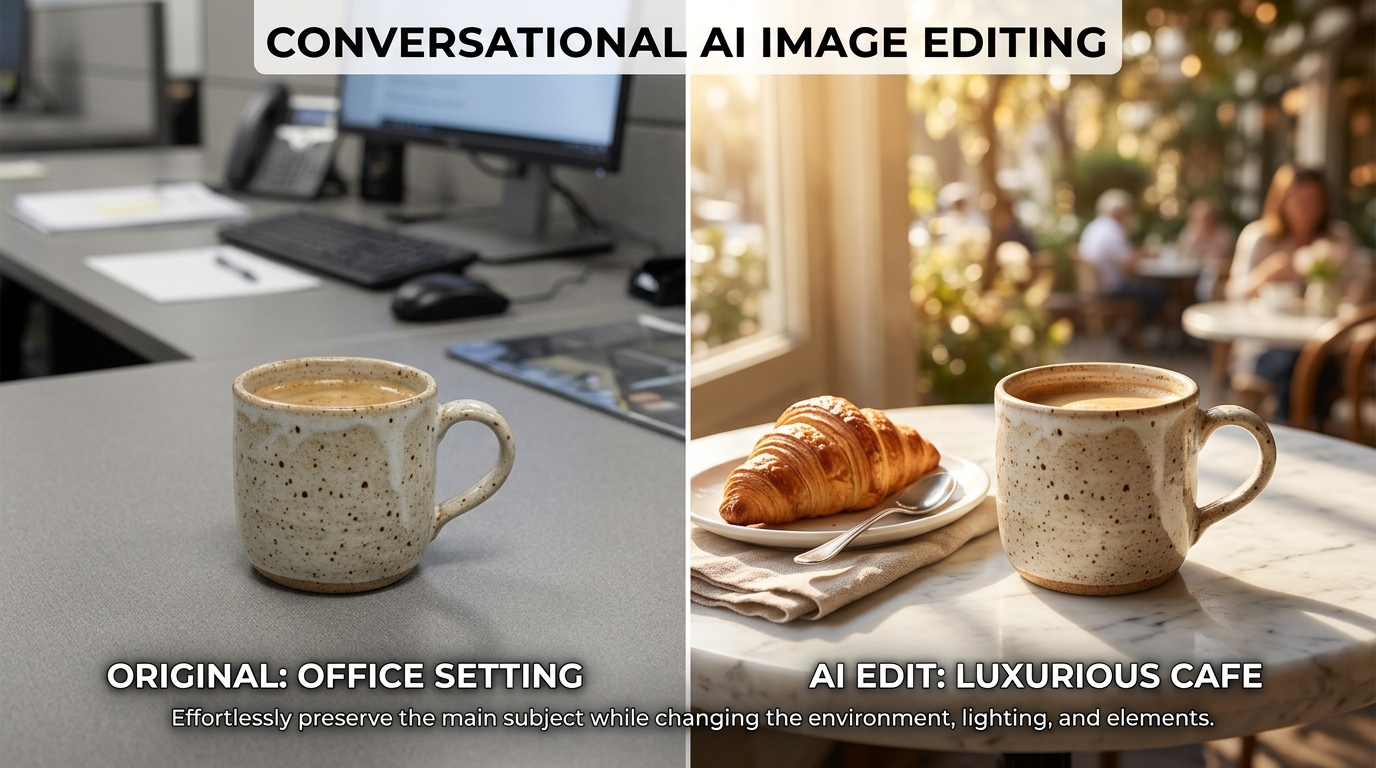
Side-by-Side Conversational Editing & Surgical Object Swaps
Refine backgrounds pass-by-pass without masks, or swap specific items while keeping real people's faces 100% untouched.
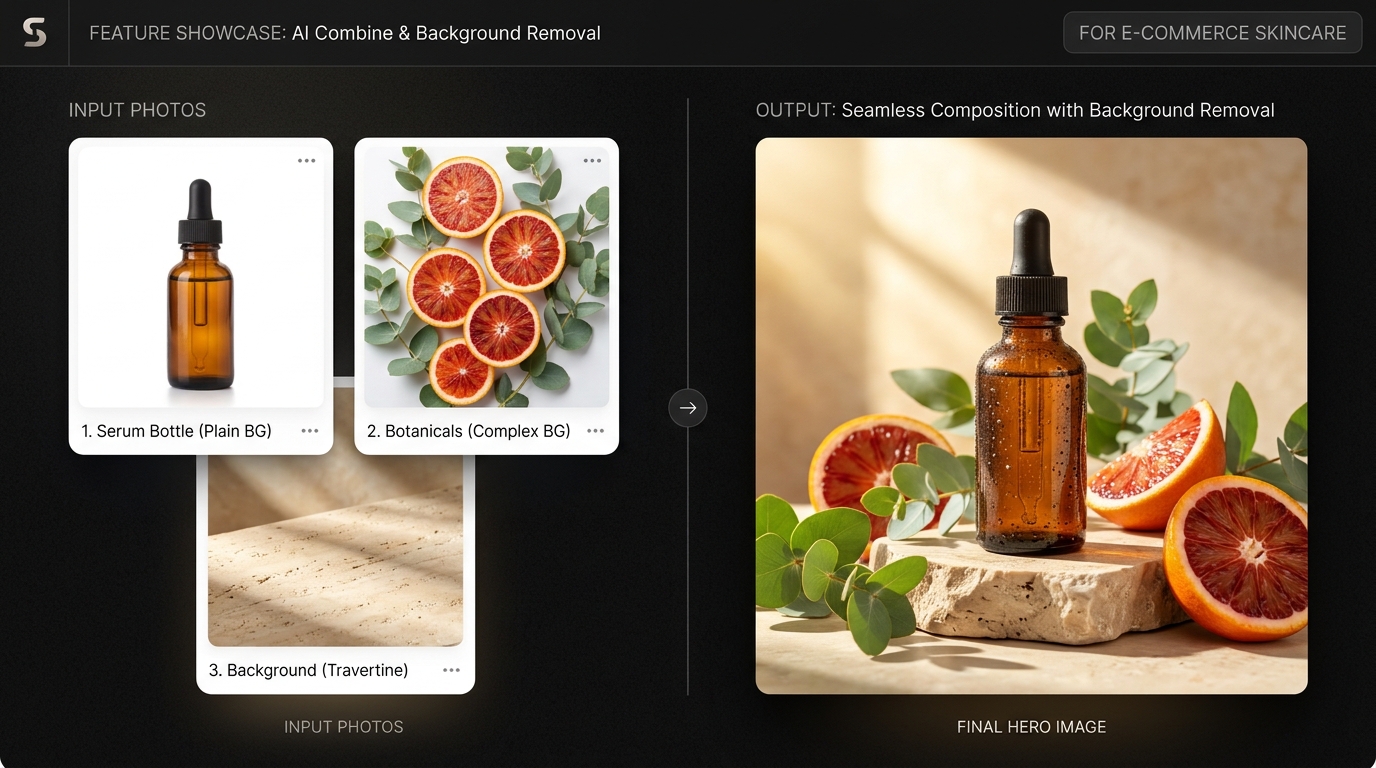
Multi-Photo Product Compositing, Cutouts & 16:9 Outpainting
Merge up to 5 photos into one scene, remove backgrounds in 1 click, fill transparent areas, or expand square photos into wide banners.
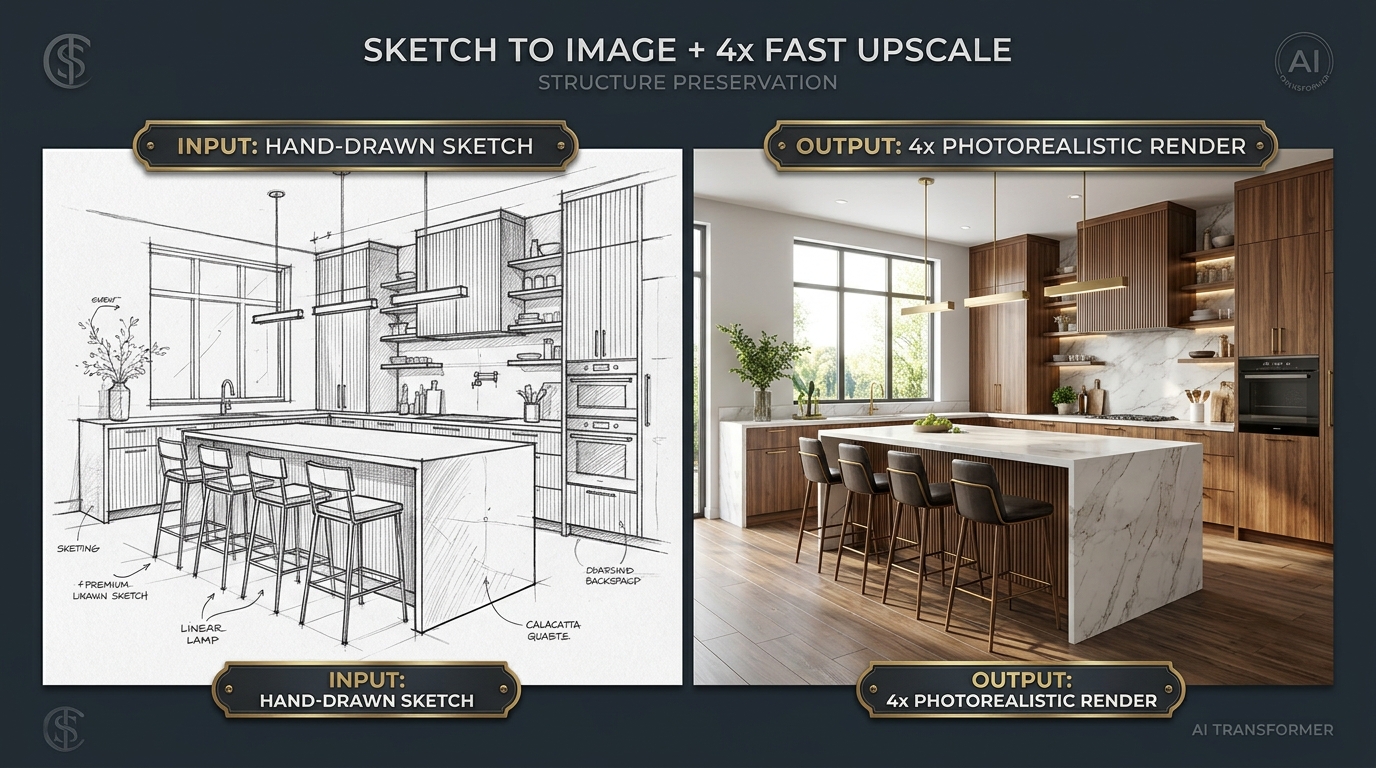
4x Predictive & Generative Resolution Upgrade
Turn rough sketches or low-res drafts into finished visuals, then multiply resolution 4x as your final step before publishing.
Print, Trade Show & Widescreen Hero Banner Ready
Outpaint up to 2,000px per side for wide landing page headers, then run Fast Upscale so every detail stays razor-sharp.
Never Stare at a Blank Prompt Box Again
Most SMB marketers aren't trained art directors—and with Brainiest, you don't have to be. Every applet includes field-by-field QuickTips, inline AI Writing Assist, and the 6 Directorial Elements formula shown below:

Who or What Is the Focus?
"A 35-year-old female ceramicist shaping a terracotta vase on a potter's wheel..."
Where Does It Take Place?
"...inside a sunlit rustic warehouse studio with exposed brick and hanging eucalyptus..."
How Is the Shot Framed?
"...eye-level close-up shot, rule of thirds, shallow depth of field with soft background blur..."
Where Is the Light Coming From?
"...soft morning sunlight through steel windows, warm golden rim light on hair..."
What Is the Visual Medium?
"...35mm editorial documentary photography" (or choose from 17 built-in style presets).
What Tones Set the Mood?
"...earthy palette of terracotta, warm ochre, sage green, and soft cream; peaceful mood."
From First Spark to Scheduled Social & Ad Campaigns
Every image you generate or edit saves straight to your Brainiest Media Library so you can chain tools together and publish across all 4 Campaign Builders:
Generate Your Base Visual
Start in Generate Image with OpenAI, Image Generation 3, Text to Image Ultra, or Create Vector Art.
Click "Edit Image" or Swap
Click Edit Image in the preview toolbar to open Edit Image with Prompt, or use Search & Replace and Extend an Image.
Run Fast Upscale Last
Finish with Fast Upscale to boost resolution 4x for high-DPI web banners, social feeds, and print materials.
Publish to Calendar & Ads
Schedule posts via the Media Calendar or pair visuals with copy in the Social, Ad Creative, Email/SMS & Landing Page Builders.
Start Creating Professional Marketing Visuals Today
Every paid Brainiest plan includes unrestricted access to all 15 Imaging Suite applets with zero monthly credit caps:
Advanced Plan
1 Seat · 1 Brand · Unlimited Generations. Ideal for solo marketers, founders, and SMB employees wearing the marketing hat. Includes all 15 Imaging tools, 4 Campaign Builders, and Boss/Co-Worker Preview Links.
Team Plan
Up to 5 Seats · 1 Shared Brand · Unlimited Generations. Share one Media Library, brand color/logo profile, real-time form sync, and all 15 Imaging applets across your team.
Agency Plans
2–10 Seats · 3–25 Client Brands · Unlimited Generations. Dedicated Media Libraries and saved brand palettes/logos for every client workspace.
Ready to Look Like You Hired a Full Creative Agency?
Unlock all 15 guided image creation, conversational editing, product compositing, vector, and 4x upscaling tools inside Brainiest.