
Content Creation

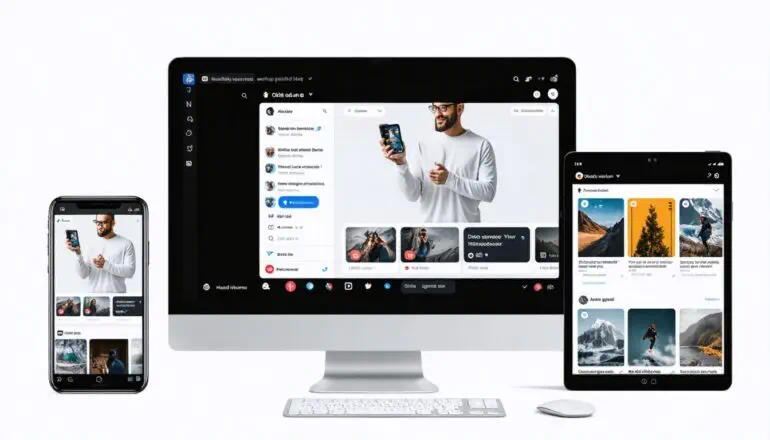
An ad agency creating content to promote a new productThe Blogs, Text & SEO applets turn content creation tasks into guided, repeatable workflows, resulting in polished posts, attention getting captions, keyword strategies, and on-page SEO improvements.  The Social Media & Ads applets help you identify influencers, create organic posts, predict ad performance, generate paid ad creatives, optimize hashtags and audit post results.  

Here are a few examples:

  • A solo marketing consultant uses Copyedit or Translate to fix the grammar/spelling and change the tone of her service brochure draft, instantly upgrading the copy prior to printing.
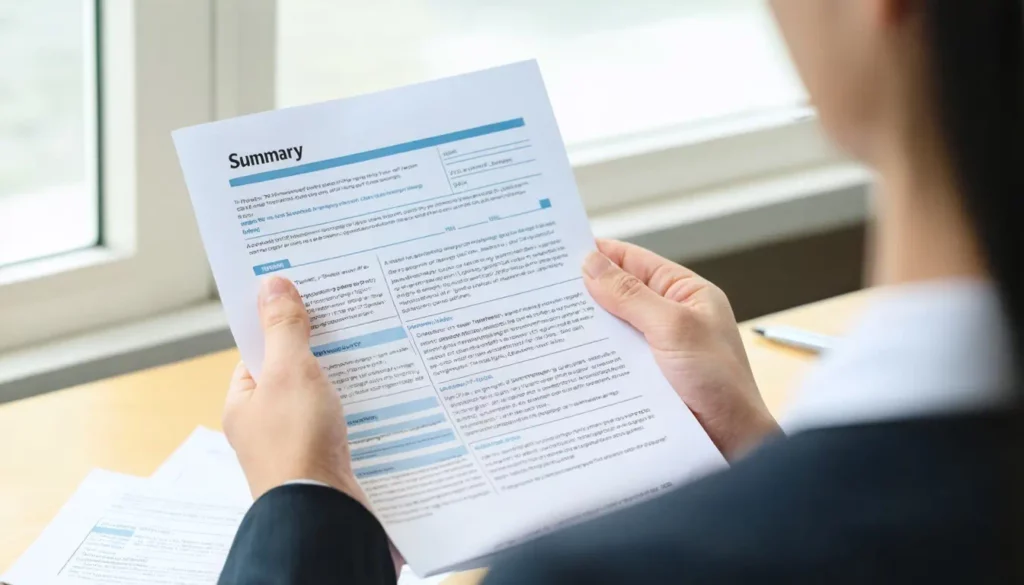
  • A small nonprofit pastes a 10-page grant proposal draft into the Summarize Text applet and selects “Bullet Points” to get a concise 5-point overview for quick internal reviews.
  • A yoga studio uploads a class photo to Organic Social Media Post, selects “Inspirational” tone and “Instagram” platform—instantly generating ready-to-post copy like “Find your flow under the morning sun 🧘‍♀️ #YogaLife.

Selected Blogs, Text & SEO Applets

Selected Social Media & Ads Applets

FAQS

Got Questions

Find answers to our AI software and subscription service.

Who is Astro?

Loyal like a dog. Smart like a CEO. Astro is the AI Assistant your business deserves. Sign Up for a free account and meet Astro.

Can I use Brainiest to translate a document's text?

Yes.  You can use the Copyedit or Translate applet to translate a document’s text.  By using this applet, text entered into the form is translated into the language specified in your instructions.  The language of your entered text is automatically detected prior to translation into your specified language.  Our applet supports more than 50 languages, which are identified in the guidance.

Depending on the applet, you can save your results to a file or folder on your storage device by selecting the COPY or Download SVG File button on an applet’s results page.

When you select the COPY button, the result currently viewable on your computer’s screen is copied into your operating system’s data buffer (clipboard) through your browser’s interface.  Once the result is copied, you can create or open a document using a word processing application (Google Docs, Microsoft Word, etc.), paste your result into the document and save it to a file on your computer.

Yes, by selecting the Regenerate button your input form will be resubmitted without any changes to your entries.  Once the results are generated, you can switch between the various versions generated by clicking on the EXCHANGE button.

No. Generating the desired results can require several submissions of an applet’s input form along with more precise, detailed and descriptive entries in the form fields.