Imaging Suite

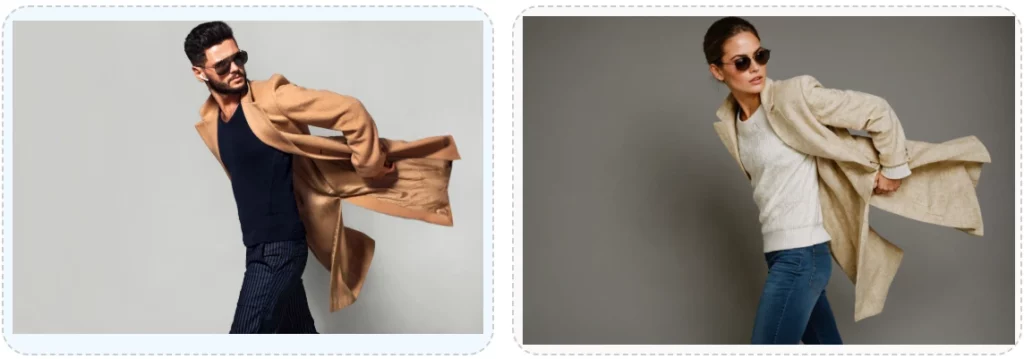
Our Imaging Suite empowers small business owners with both text-to-image generation and powerful image editing capabilities. Whether you need fresh visuals or want to refine existing photos, these 15 applets streamline creative workflows, cut design costs, and maintain brand consistency.

A few examples to help illustrate the power at your fingertips:

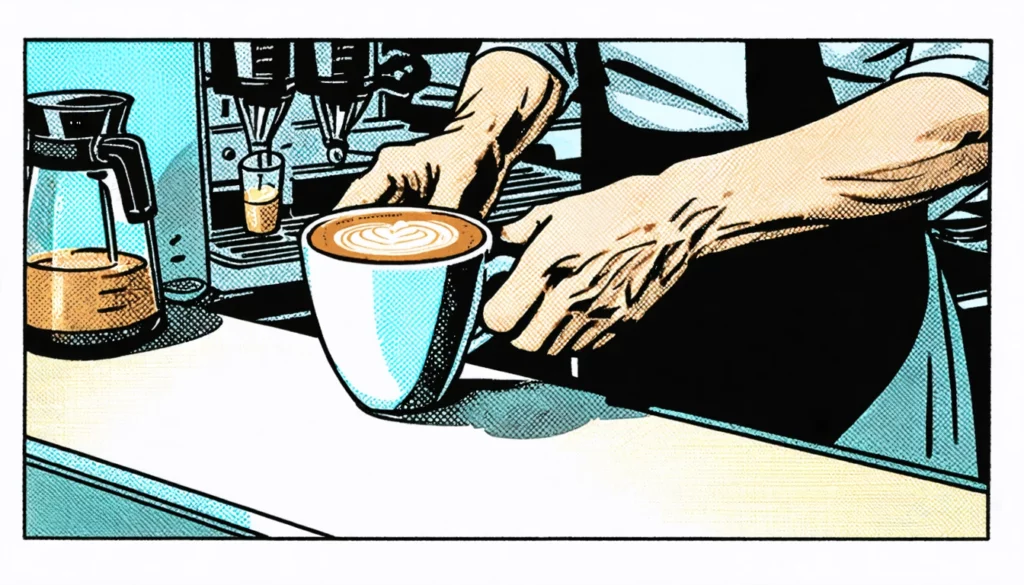
  • A coffee shop owner types “steam-rising cup in minimalist line art” into Create Vector Art and downloads an SVG logo to print on staff aprons and menus at no extra design cost.
  • Using Extend an Image, a landscaper extends a garden photo to include adjacent flower beds, creating a panoramic header for their website.
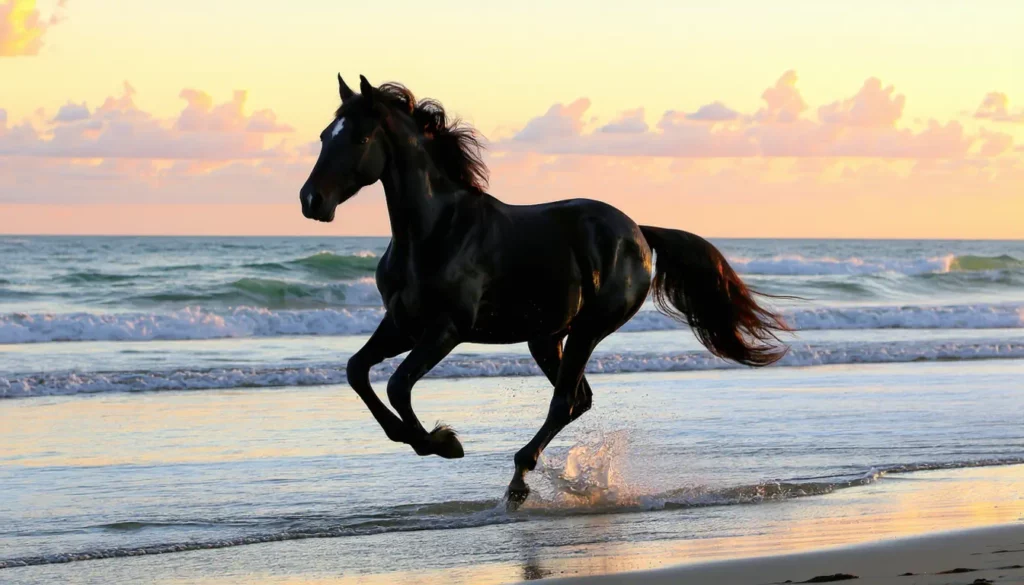
  • A fitness studio generates dynamic workout scenes with the Image Generation 3 applet in square, landscape, and story ratios to run simultaneous Facebook, Instagram, and TikTok ads without juggling multiple tools.
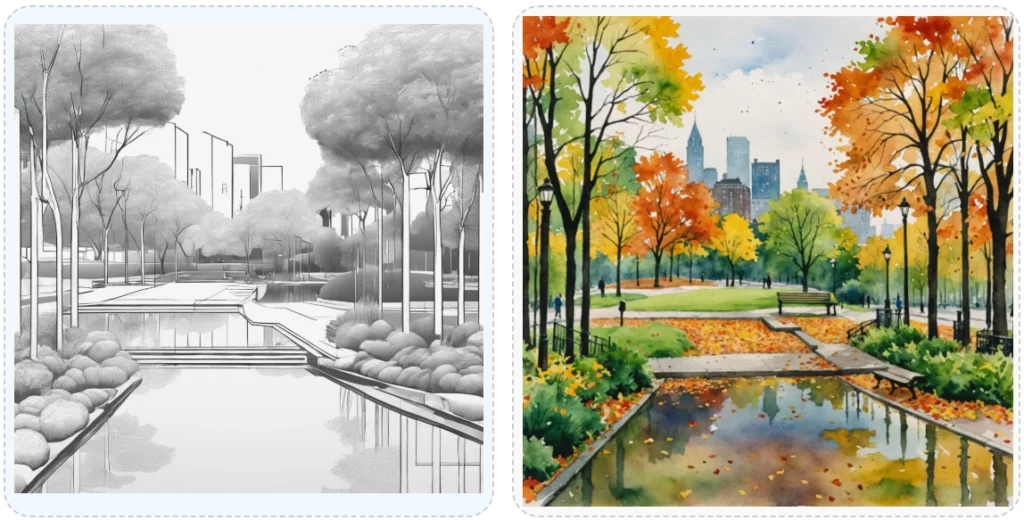
  • A furniture maker uses Preserve Image Structure to convert a showroom photograph into a stylized watercolor rendering for an artful brochure, while preserving the sofa and table placement.
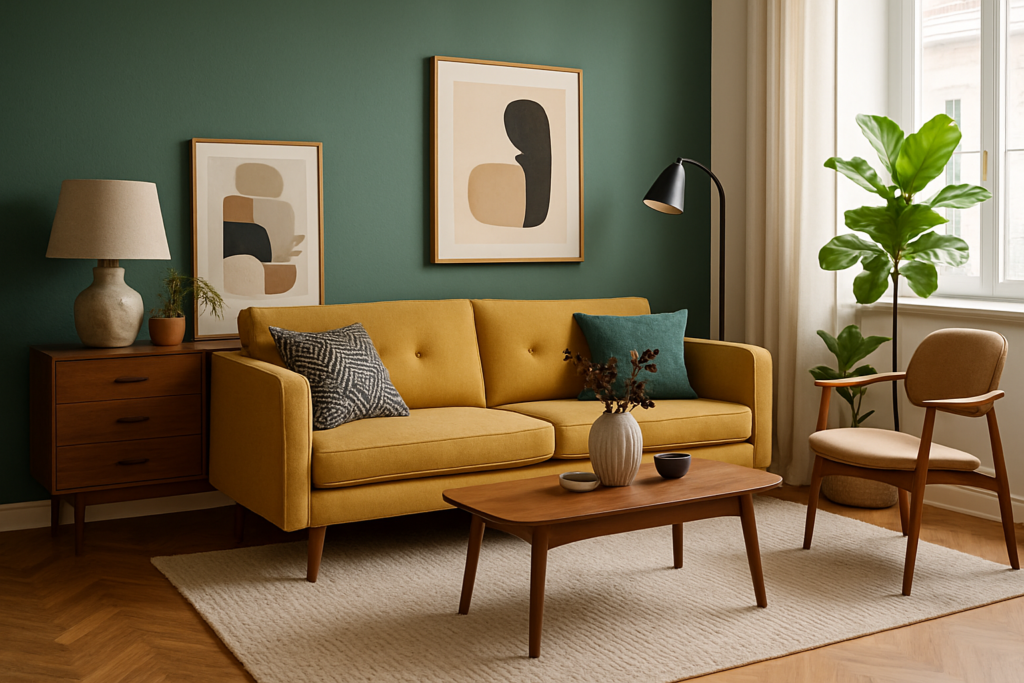

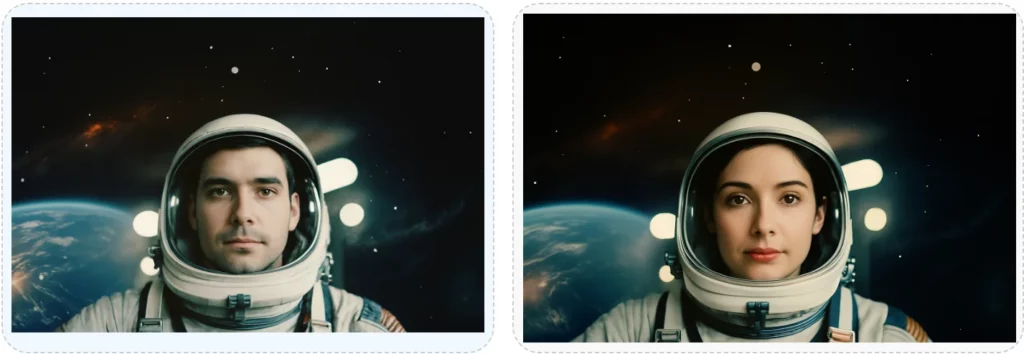
create image from text Applets

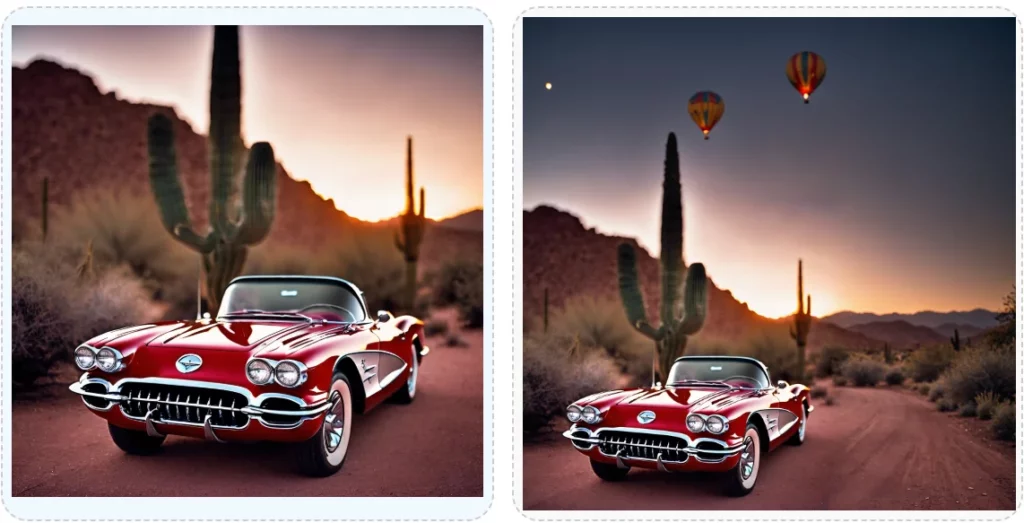
Selected Modify Existing Image Applets

FAQS

Got Questions

Find answers to our AI software and subscription service.

Who is Astro?

Loyal like a dog. Smart like a CEO. Astro is the AI Assistant your business deserves. Sign Up for a free account and meet Astro.

Can I use Brainiest to generate an image from a text prompt?

Yes.  Our service includes multiple applets capable of generating an image from your description and selected style.  The image created is unique and fully synthesized based on the input you provide.  After the initial image is generated, you can refine it by changing styles or providing additional details in your description.

The Create Image with OpenAI applet’s primary purpose is to generate images from textual prompts.  By including a revised prompt (Dall-E option only), the applet provides you with additional context to help guide you through the creative process.  It encourages further refinement of your prompt, resulting in the generation of a more interesting and imaginative image.

Yes.  Our service includes multiple applets capable of modifying an existing image uploaded by you.  The applets in our Imaging Suite include Edit Image with Prompt, Extend an Image, Image Variations, Inpainting, New Image from Another, Preserve Image Structure, Remove Background, Replicate Image Style, Search and Replace, Sketch to Image, and Upscale an Image.  

Depending on the applet selected, you can create a new image by altering, editing, extending or upscaling your uploaded image.  You’ll find the necessary guidance within each applet

When you select the Download SVG File button, the result generated by our Create Vector Art applet is downloaded to your computer’s download directory as an SVG file.  A dialogue box will appear informing you of the successful download with a link for opening the file.  You can insert the SVG file in an application that accepts an SVG image for editing.

Yes.  The images uploaded or generated by you are retained to improve your user experience with our service and can be viewed in your Media Library. Please reference our Terms of Use for additional details.