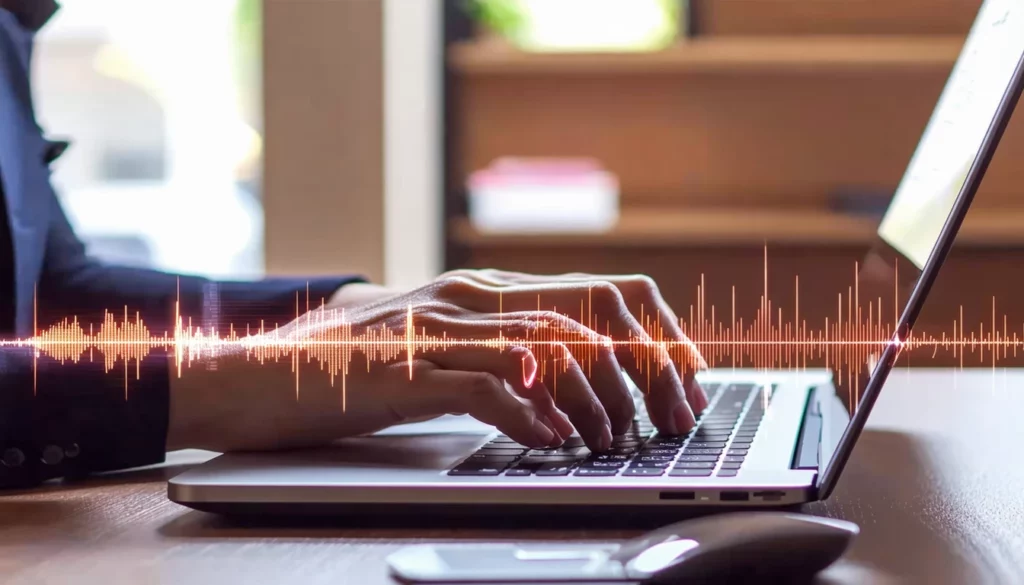

Audio

How can I use these audio capabilities? Here are a few examples:
- Use the Transcribe Audio applet on sales calls or focus-group recordings to capture customer feedback, then input that transcript into the Action Items applet to assign follow-up marketing tasks, such as, create case studies, update FAQs or build targeted ad copy.
- Generate custom background tracks or sonic branding with the Text to Music applet, layering the soundscapes under video ads or podcasts.
- Record voiceovers in multiple styles with the Text to Speech applet to add polished narration to video or radio ads without using a studio.

AUDIO APPLETS
Action Items
Have you ever held a meeting and then afterwards it was unclear who was assigned tasks and when they were due? No more. If you record a meeting with our Transcribe Audio applet, our Action Item applet can analyze the transcript and then provide a summary of the meeting. All tasks will be listed with the person responsible and the date they are due.
Text to Music
Generate high-quality music or sound effects up to 3 minutes long in 44.1 kHz stereo with our Text to Music applet. You provide a text prompt describing the genre, mood, style, tempo and instruments, and the model will generate high-quality music. For a sound effect, simply include a brief description of the sound and set the duration to about 10 seconds.
Text to Speech
Bring your text to life with our Text to Speech applet. Choose from ten natural-sounding voices—five male and five female—that can speak with appropriate tone and emphasis from the script you provide, even in any of the most common languages. Whether you’re creating professional voiceovers, enhancing accessibility for your content, or adding a human touch to your presentations, this tool makes it effortless. Perfect for podcasts, e-learning, marketing videos, or any project where great sound matters.
Transcribe Audio
If you have an audio or video file, you can upload it to our Transcribe Audio applet and receive a full transcription, a summarization, or captions in a standard format to use for a video. The audio can be in some 20 different languages — the language is detected automatically — and will be transcribed accurately in the recorded language. Our model recognizes up to 10 speakers and will label the transcript for each speaker.
Translate Audio
Do you have audio files that were recorded in a foreign language that you wish you can get translated into English, but translation is too expensive? Our Translate Audio applet can accept audio file in any common format and translate accurately from more than 50 languages. You will get a full English transcription to download. Later, if you wish, you can use the transcription to make an English recording using our Text to Speech applet.
FAQS
GOT QUESTIONS
Find answers to our AI software and subscription service.
Who is Astro?
Loyal like a dog. Smart like a CEO. Astro is the AI Assistant your business deserves. Sign Up for a free account and meet Astro.
Can I use Brainiest to translate audio?
Yes. You can use the Translate Audio applet to translate an uploaded audio file from one of more than 50 languages into English. The language used in your audio file is automatically detected prior to translation into English. The supported languages are identified in the applet. After the translation is completed, our service will send you an email with a link for downloading the file containing your results.
Can I use Brainiest to transcribe audio?
Yes. You can use the Transcribe Audio applet to transcribe an uploaded audio or video file into written text. The language used in your file is automatically detected and applied to the transcript generated by our applet. The applet supports multiple languages, which are documented in the applet’s guidance. After the transcript is generated, our service will send you an email with a link for downloading your transcript file.
Can I use Brainiest to generate speech?
Yes. Our service includes the Text to Speech applet, providing you the ability to convert text into spoken words. The applet provides a selection of 5 male and 5 female voices, utilizing advanced artificial intelligence to generate natural sounding audio from your entered text. After the speech is generated, our service will send you an email with a link for downloading your audio file.
Why didn't I receive an email with a link to my results?
The email from our service containing a link to your results may be in your email application’s Junk, Other or Spam folder. You may also want to inspect your Deleted, Recycle or Trash folder for the email from our service. If you still can’t find it, then you may need to add our email address to your list of approved or safe email addresses. The steps for adding an email address to your approved list (whitelist) vary by email service, but can be found through an online search. As an example, whitelisting an email address in Gmail involves creating a filter with these steps:
- Click the gear icon in Gmail and select “See all settings” from the Quick settings menu
- Navigate to “Filters and Blocked Addresses” in the top menu
- Select “Create a new filter”
- Add a specific email address or a whole domain in the “From” field
- Click “Create filter”
- Check “Never send it to Spam” in the checkbox